

A potential customer searches for exactly what you offer. Your page makes it to page one of Google. But instead of clicking, they scroll right on by.
Why?
Your meta description still says “Welcome to WordPress” while your title trails off with “Home – Just another Word…”
This happens more than you think. Site owners quietly strangle their own traffic by ignoring meta tags: those tiny snippets out there pitching for you – or against you – every time your site shows up in search results.
WordPress doesn’t auto-generate meta descriptions. Without them, your pages risk:
- Bland excerpts that don’t sell your content.
- Titles cut short before your brand even shows.
- Missing social previews that tank shareability.
The good news is that adding and optimizing meta tags doesn’t have to be a headache. You can master it today with no code, and no tech drama.
In this guide, we’ll unpack what meta tags really are, outline your three options for adding them, then zoom in on the plugin route that’s already powering SEO for 300,000+ WordPress sites.
WordPress meta tags are HTML elements in your site’s
section that provide information about your page to search engines and browsers. They’re invisible to visitors but hugely influential.
The key types are:
- Title tags: Show up in browser tabs and as clickable headlines in search results.
- Meta descriptions: The short preview text beneath search result titles.
- Meta keywords: Once important, now completely ignored by major search engines.

By default, WordPress only generates basic title tags, and often in a generic format, like post title plus site name, leaving meta descriptions to themes and plugins. This is intentional: the platform stays flexible so you can decide whether you want a simple solution or a full SEO suite.
Here’s the current reality: meta tags no longer move your rankings (Google made that clear back in 2009). But they still have real power where it counts – convincing users to click your result instead of someone else’s.
Why meta tags still matter
A sharp meta description is micro-copy that sells your page in under 160 characters. It’s your elevator pitch to the searcher, and on mobile it matters even more:
- Limited space means every word has to work harder.
- Voice assistants increasingly read descriptions aloud (with 157.1 million users forecast by 2026).
- Smaller screens make first impressions happen in an instant.
As well as describing your page, well-written meta tags do win you the click. Knowing how to add them to your site is key.
WordPress gives you three main options for adding meta tags: editing header.php directly, using lightweight plugins like Meta Tag Manager, or installing full SEO suites like SEOPress.
Manual code method
🎯 Best for: Single-page sites or developers confident with PHP.
⚠️ Risks: Theme updates erase changes, syntax errors can break the site.
⏳ Time investment: 10–15 minutes per page.
This method means adding tags straight into your theme’s header.php file. It offers complete control, but any theme update will wipe your edits unless you’re working with a child theme.
Lightweight plugin solutions
🎯 Best for: Basic blogs with simple requirements.
⚠️ Limitations: No dynamic variables, limited bulk editing.
💵 Cost: Typically free, but with restricted features.
These plugins, such as Meta Tag Manager, add simple meta fields to posts and pages. They’re ideal for small sites that need a quick fix without the complexity of a full SEO suite.
Full SEO suites (Yoast or SEOPress)
🎯 Best for: Growing sites, SMBs, agencies, and anyone serious about organic traffic.
🚀 Advantages: 50+ dynamic variables, bulk management, AI generation.
💵 Cost: Free versions available; PRO plans from $49/year.
These all-in-one tools manage everything from meta tags to sitemaps, with automation that scales as your site grows.
Choosing your approach
Your choice comes down to three things:
- Site size: 10+ pages makes plugins essential, 20+ pages calls for a full suite.
- Technical skill: If PHP editing feels risky, go straight to plugins.
- Budget: Time saved with automation usually outweighs the plugin cost in the first month.
✅ For most users running multi-page WordPress sites, a full SEO suite is the smartest balance of capability and ease.
Updating meta tags in WordPress with SEOPress is a simple process that works smoothly across any page builder or editor.
Initial setup
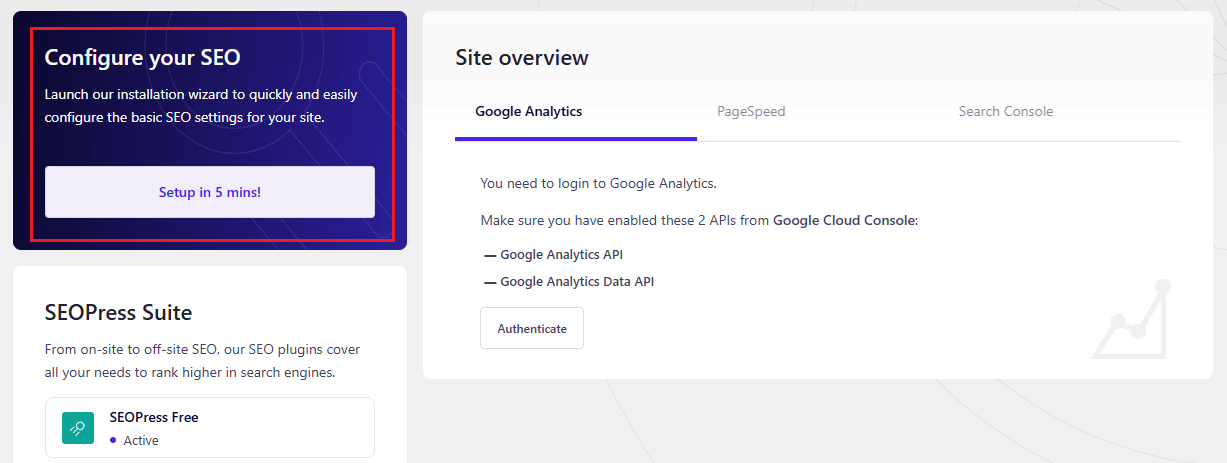
Once SEOPress is installed, launch the configuration wizard from your WordPress dashboard. This sets default meta tag templates and ensures everything functions correctly site-wide. The process takes less than five minutes and covers the technical groundwork automatically.
Page-level editing
SEOPress’s Universal SEO metabox is built right into Gutenberg, Elementor, and other page builders, so you don’t need to switch screens.

Key advantages include:
- Google snippet preview: Switch between mobile and desktop views to see exactly how your page will appear in search results.
- Accurate length checks: Visual indicators measure pixel width as well as characters.
- Clear feedback: Green, orange, and red indicators keep you within the ideal range without guesswork.

Advanced meta management features
For agencies or advanced users, SEOPress offers robust functionality:
- AI-powered generation: Integrations with OpenAI and DeepSeek can analyze content and create contextual meta tags in seconds.
- Bulk operations: Import or export metadata for hundreds of pages via CSV, ideal for migrations or large updates.
- Flexible robots control: Apply noindex, nofollow, noimageindex, and nosnippet options at the page level.

Migration from other plugins
Switching from another SEO plugin is handled smoothly:
- One-click metadata import: Transfers your existing work without manual effort.
- Automatic conflict checks: Prevents duplicate title issues during migration.
- No downtime: Your tags stay live throughout the process.
Making bulk management simple
SEOPress’s 50+ dynamic variables turn repetitive tasks into automated workflows. Variables like %%post_title%%, %%site_title%%, %%author_first_name%%, and %%post_date%% populate automatically across your site.
Managing too much content to edit manually? Set global templates for post types, taxonomies, and archives so even a 200-page site can be optimized in minutes. With the PRO version’s OpenAI integration, you can bulk-generate titles and descriptions from your own content, target keywords, and chosen language, transforming a time-consuming project into a quick task.
Of course, all this only matters if you write effective meta descriptions.
The reason your carefully written 160-character meta descriptions still get cut off is simple: Google measures snippets by pixel width, not character count. Desktop results allow roughly 940 pixels, so “WWWWW” eats more space than “iiiii”, even when the character count is identical.
Homepage template that converts
To make your homepage meta description work harder:
- Lead with your unique value proposition.
- Work in your main keywords naturally.
- Close with a light call to action.
📌 Example: “Discover affordable WordPress SEO with SEOPress. We help businesses achieve higher rankings through intuitive tools and 50+ automation features. Start optimizing today.”
Common meta description mistakes to avoid
Stuffing keywords kills credibility. Since Google automatically bolds matched terms, clunky repetition like “SEO plugin, best SEO plugin, WordPress SEO plugin” looks forced and undermines trust. Vague copy wastes prime space.
A line like “Click here to learn more about our services” offers nothing of substance. Every word should highlight your specific value. And reusing your title tag is a lost chance. Title and description should work together; your description should build on the promise your title makes.
Meta descriptions are free ad space in search results. Use them to show why you’re different, and make every pixel earn its place.
When you’re adding metadata in WordPress, everything lives in your SEO plugin’s metabox, usually right below the content editor. It’s a common mistake to hunt through Settings or Appearance, but the controls are right there on the edit screen.
Essential metadata elements
Optimizing title tags means striking the right balance between keywords and branding. Lead with your value proposition, then add your brand name, keeping it under 568 pixels (about 60 characters). “WordPress Meta Tags Guide” will always perform better than “Home – MySite.”
Open Graph integration shapes how your pages display on Facebook, LinkedIn, and other social platforms. Skip it, and networks will pull random text and images, hurting engagement.
Schema markup works alongside meta tags. Meta tags tell search engines what to show; schema explains the context of your content.
Canonical URLs are critical for avoiding duplicate content. They point search engines to the master version of a page, which is especially important for filtered or paginated archives.
SEOPress’s unified approach
Where some plugins scatter options across multiple menus, SEOPress keeps everything in one place:
- Single metabox control: Title tags, descriptions, Open Graph, Twitter Cards, and robots directives together.
- Smart defaults: Content analysis generates context-aware suggestions, including focus keywords and Google recommendations.
- Live previews: Instantly see how your page will look in Google, Facebook, and X (Twitter).
Boost WordPress SEO Fast with SEOPress Metabox Settings 🔧 | Edit SEO Inside Any Page Builder!
This streamlined setup removes the guesswork, saving you from jumping between screens just to manage basic metadata. Nonetheless, once your metadata is set up, you need to make sure it works the way you want.
Checking that your meta tags work as intended is a three-step process that picks up problems at every stage.
Layer 1: WordPress check
Make sure your tags are actually being saved by looking at the SEOPress metabox after publishing. The preview should match what you entered, not show blanks or fallback text. If it doesn’t, look into plugin conflicts or caching issues.

Layer 2: HTML source inspection
Confirm the tags appear in your page code by right-clicking and choosing “View Source.” In the
section, search for and
Featured Stories#Add #Meta #Tags #WordPress #StepbyStep #Plugin #Method1767859124